
1. Foreword
I have recently published several tutorials regarding the 1Panel dashboard, such as "How to Backup Data on 1Panel" and "Building a Blog with 1Panel + Halo (Ultra-Detailed Illustrated Guide)." Lately, I have been diving into 1Panel's Snapshot feature. However, many users wonder: How do you actually use it? If something goes wrong, how do you restore these snapshots? To answer these questions, I conducted a full test and prepared this tutorial for you.
2. Step-by-Step Instructions
Using server migration and snapshot restoration as a practical example, I will walk you through the process in detail. I am assuming you have already created a snapshot backup on your old server; we will jump straight into the restoration process.
Step 1: Install the 1Panel Dashboard on the New Server
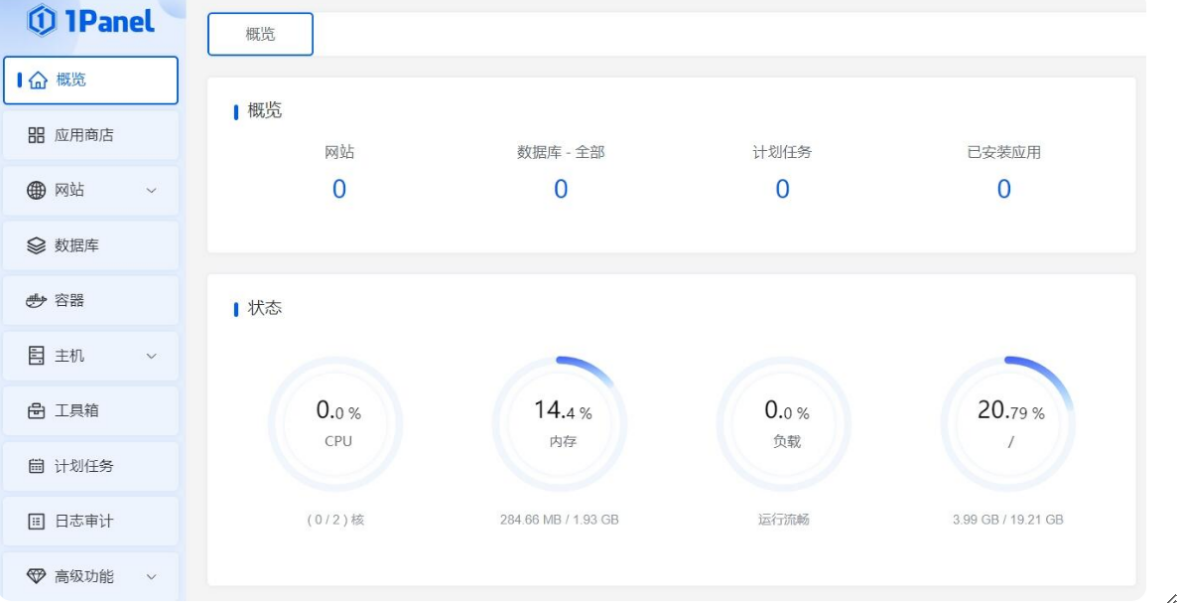
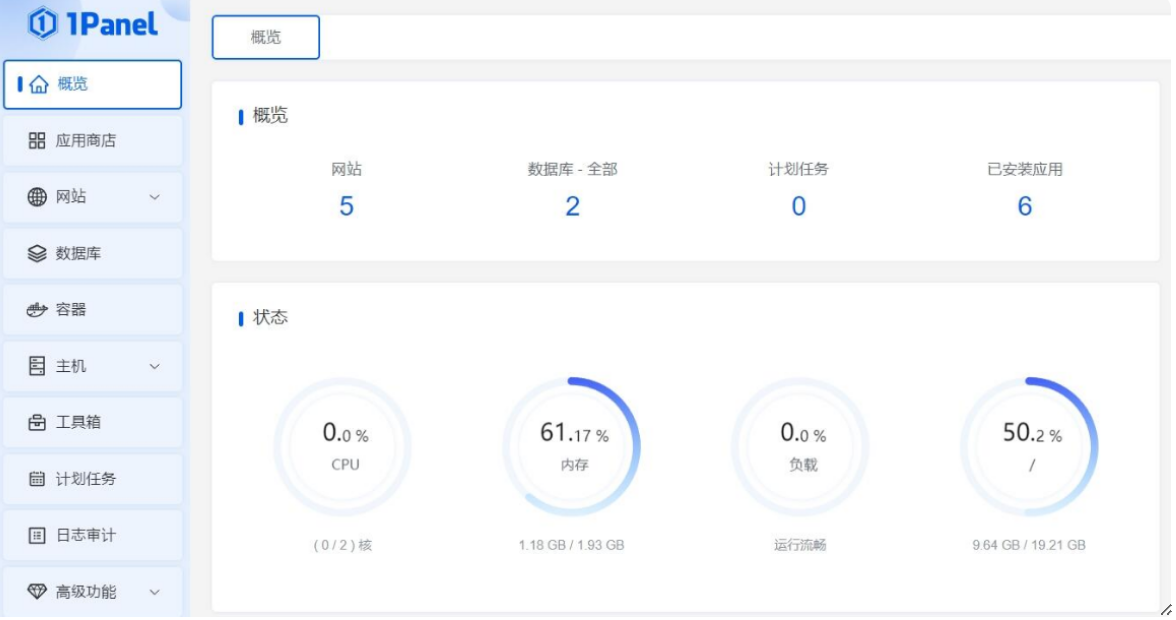
First, you need to install 1Panel on your new server. The installation process is straightforward—simply follow the official installation guide step-by-step. There are no special configurations required at this stage; once installed, you will see a clean, empty dashboard interface. On my new server, for instance, all data metrics were at zero immediately after the fresh install.
Step 2: Upload the Snapshot File
Once 1Panel is installed, the next step is to transfer your snapshot backup file from the old server to the new one. By default, these files are stored in the /opt/1panel/backup/system_snapshot directory. You simply need to copy your backup file into this specific folder on the new server.
Note on External Storage: If you used S3 or other remote storage services for your backups on the old server, theoretically, you just need to configure the same backup account on the new 1Panel instance, and the system should automatically pull the snapshot files. Since I performed this manually, I haven't verified the auto-pull feature, but you can follow the official documentation if you prefer that method.
Step 3: Synchronize Snapshots
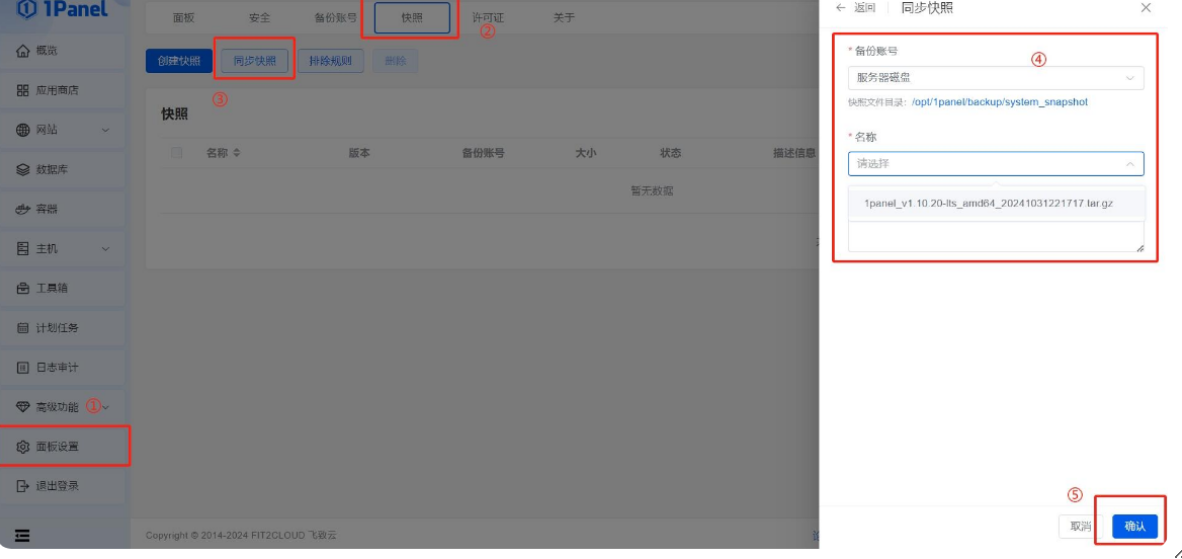
After uploading the file, log in to your 1Panel dashboard. Navigate to Settings and click on the Snapshots menu, then select "Sync Snapshots" . At this point, the system will automatically list all available snapshot files ready for restoration. Simply identify the correct snapshot file you wish to restore and confirm your selection.
Step 4: Restore the Snapshot
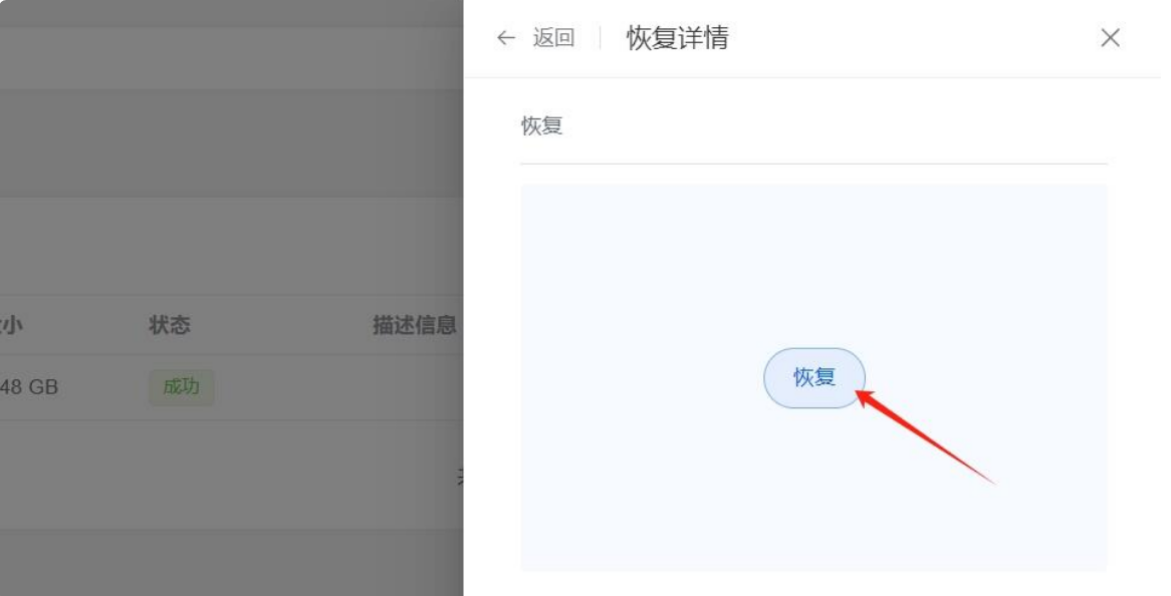
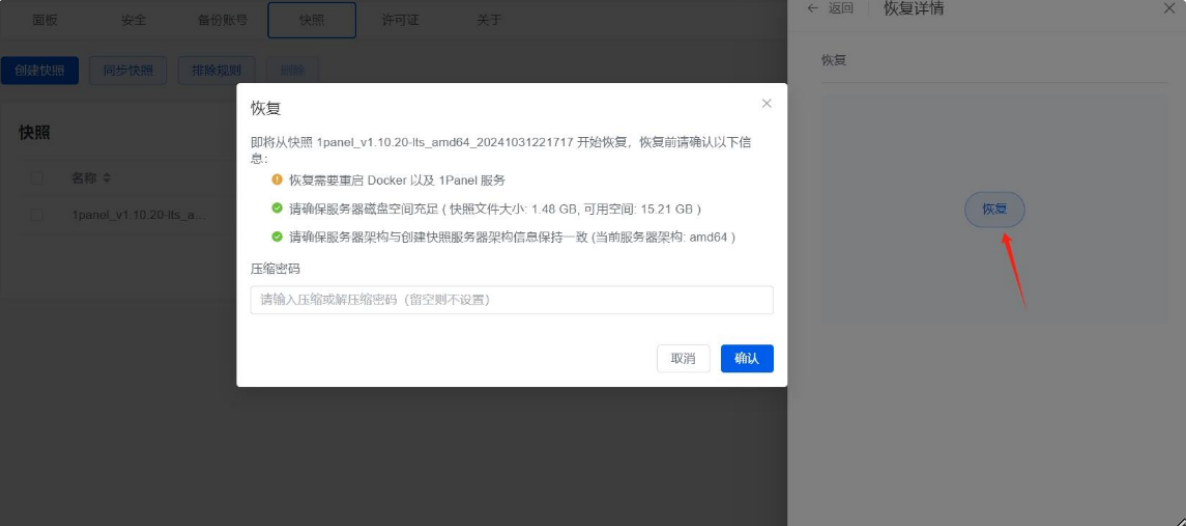
After selecting the snapshot file, click the Restore button. If you set a password when creating the backup, the system will prompt you to enter it now; otherwise, simply leave the field blank.
At this point, the system will enter the restoration interface and begin recovering your data.
Important Note: If the Security Entrance (Path) or Port settings of the 1Panel dashboard on your new server differ from those on the old server, you may encounter access issues. By default, the system does not automatically redirect you to the old configuration after restoration. You will need to manually access the panel using the original port and security path from your old server's configuration.
Step 5: Restoration Complete
Once the process finishes, the system will display the final restoration status. You can now log in to the dashboard to verify that all your data, applications, and websites have been successfully restored.
You will find that every app and website on the new server is now an exact replica of the old one. The data remains perfectly intact, and the entire migration process is remarkably seamless and hassle-free.

3. Conclusion
While the snapshot restoration process in 1Panel is generally very simple, there are a few key details to keep in mind. For instance, the Security Path and Port settings on the new server must match the old server's configuration after the restore; otherwise, you will be locked out. Additionally, snapshots restore the entire system state—you cannot currently select specific individual applications to restore.
In summary, 1Panel's snapshot feature is a powerful and practical tool, especially for server migration and backups. It allows you to restore all data and applications to a new server within minutes, saving you from a mountain of tedious configuration work. The only minor drawbacks are the lack of selective app restoration and the need to manually account for security path changes.
If you are considering using 1Panel to manage your servers, I highly recommend this feature. It significantly boosts efficiency during migrations and emergency backups.
A Lesson Learned (The "Pitfall")
Finally, I want to share a mistake I made so you can avoid it. Because the snapshot includes the 1Panel system settings, you must use the Security Path, Port, and Credentials from the old server to log in once the restore is complete.
Initially, I was stuck on a loading page and couldn't log in because I was still trying to use the new server's default login info. I almost thought the restoration had failed! It wasn't until I realized that the panel's identity had "become" the old server that I was able to log in successfully. It was a bit of an oversight on my part, but hopefully, my "pitfall" helps you have a smoother experience!