Foreword
One morning you SSH into your VPS and things start failing. MySQL refuses writes, Nginx cannot log, apt crashes mid-install. You run df -h and the root partition sits at 95%.
If you run long-term tasks on a VPS, disk creep is almost guaranteed — it is feasible, but it needs housekeeping (see also: Is It Feasible to Run Long-Term Tasks on a VPS?). The good news is that disks fill in predictable ways. Most of the space goes to a handful of well-known places, and an hour of cleanup usually takes it back.
This guide walks through where the space goes and how to reclaim it safely. And if it is slowness rather than disk space you are fighting, see Why Is My Self-Hosted VPS So Slow? instead.
Before deleting anything on a production box, take a snapshot if your panel supports it — 1Panel users can follow this snapshot restoration tutorial.
Find Out Where the Space Went
Start with the overview:
df -h This shows every filesystem and how full it is. If the numbers do not add up, check inodes too:
df -i A disk can be “full” on inodes while raw space remains — millions of tiny files like PHP sessions do this.
Then drill into the biggest directories:
sudo du -xh --max-depth=1 / | sort -rh | head -20 The -x flag keeps du on one filesystem, so virtual mounts do not pollute the result. cd into the largest directory and run it again, until the culprit shows up. If you prefer interactive tools, ncdu does the same thing with arrow keys.
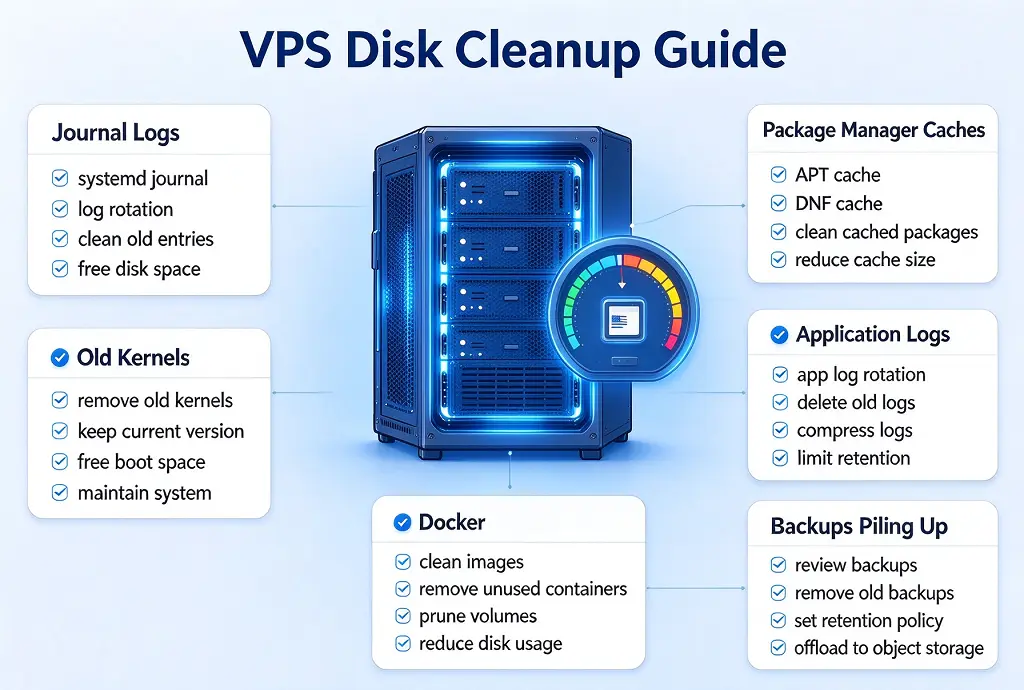
The Usual Suspects
Journal Logs
On systemd distros, journald is often the biggest silent eater. Check what it holds:
journalctl --disk-usage Trim it now:
sudo journalctl --vacuum-size=200M Then cap it permanently. In /etc/systemd/journald.conf, set SystemMaxUse=200M and restart the service:
sudo systemctl restart systemd-journald Package Manager Caches
Downloads pile up in the package cache. On Debian and Ubuntu:
sudo apt clean On CentOS Stream, Rocky or Alma:
sudo dnf clean all Old Kernels
Kernel updates leave the previous versions installed as a safety net. After confirming the current kernel boots fine, remove the old ones:
sudo apt autoremove --purge or on the dnf side:
sudo dnf autoremove Docker
Images, stopped containers and build cache grow quietly. Check the breakdown first:
docker system df Then clean up:
docker system prune This removes stopped containers, unused networks and dangling images. Adding -a also removes every image not used by a running container — including ones you may want later. Volumes are excluded unless you add --volumes. Read the list before confirming, and do not run it blindly.
Application Logs
Look around /var/log for files that grow without bound. logrotate normally handles this, but apps installed outside the package manager often get no rotation rule. Check that logrotate covers your app logs, with weekly rotation and compression.
One classic trap: rm on a log file that a process still holds open does not free any space. The file handle survives until the process restarts. Use truncate instead:
sudo truncate -s 0 /var/log/yourapp.log Or restart the service after deleting the file.
Backups Piling Up
Backup scripts that write locally fill the disk in the least visible way — one compressed archive per week, quietly stacking. Move them off the box instead. Object storage is the natural home for backups: VMRack’s object storage, for example, includes 5 GB of storage and 10 GB of monthly egress for free, which covers compressed site backups of a small VPS comfortably.
Keep It from Coming Back
Set the journald cap as shown above, once, and forget it.
Verify logrotate covers every app that writes logs.
Set a simple alert: a cron job that runs df and emails you when usage crosses 80%, or use your provider’s monitoring panel.
Do a ten-minute check monthly: df -h plus docker system df tells you the trend.
Conclusion
A full disk is the most predictable failure a VPS can have. Find the space with df and du. Take it back from journal logs, package caches, old kernels, Docker and unrotated logs. Offload backups to object storage, set caps and alerts, and the disk stops being an emergency — it becomes routine.
Thanks for reading!